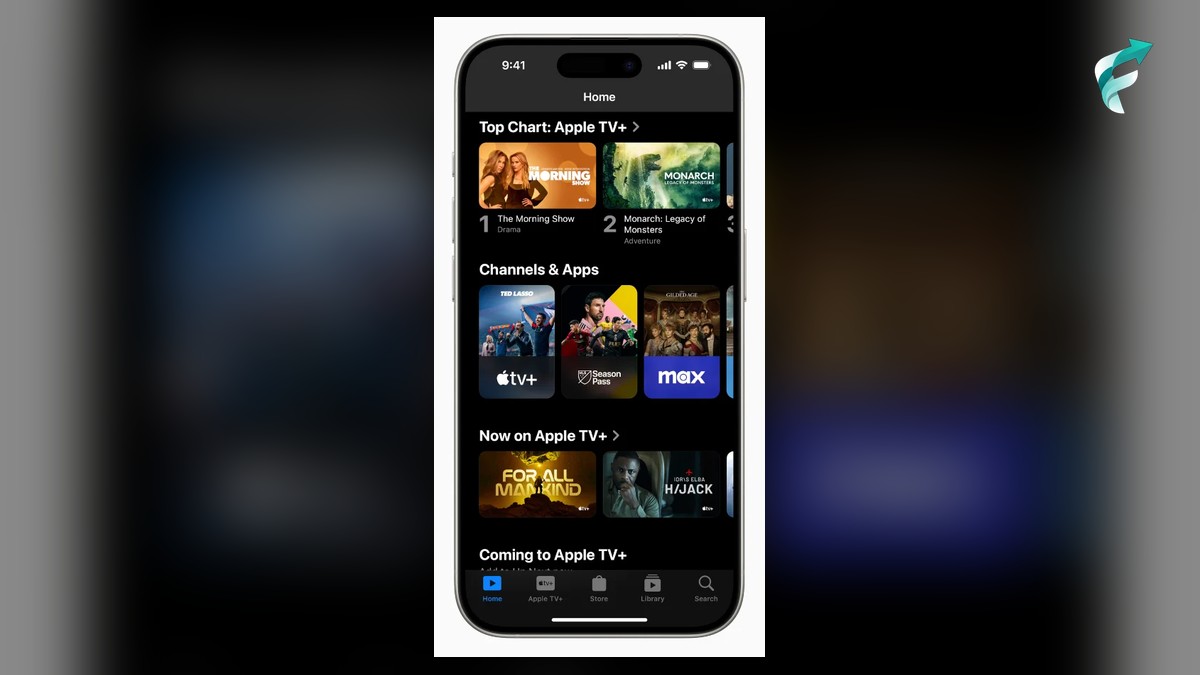
You open the Apple TV app to finish your thriller, and Continue Watching is full of cartoons. You did not watch them. Someone borrowed your phone — your kid, your brother, a friend who wanted “just one episode.” One episode became ten, and now Apple thinks you love cartoons more than crime dramas. Apple TV profiles in iOS 27.2 fix exactly this, in less time than it takes to find your show in that cartoon-filled list.
What Apple TV Profiles Actually Do
Think of a profile as a separate room inside the same Apple TV app. Each person gets their own watch history, Up Next list, recommendations, and watchlist. Your thriller stays in your list. The cartoons stay in the kid’s list. Nobody’s taste messes up anybody else’s.
You can add up to five extra profiles, plus your own — six in total. And a new profile does not need its own Apple Account. No Apple ID for a seven-year-old, no Family Sharing puzzle for a guest. A name, an icon, and one question — is this for a child? — is all it takes.
Just remember: a profile only changes the Apple TV app. It does not lock the rest of your iPhone, and it does not replace Screen Time.
Before You Start
Update to iOS 27.2 or iPadOS 27.2 or later first. Go to Settings > General > Software Update. Profiles arrived with this update, so on an older version the option simply will not appear. You are the manager here, since it is your phone and account. Only the manager can manage and delete the profiles they create, and the manager’s own profile cannot be deleted.
How to Set Up a Profile
Keep your phone in your hand and follow along:
- Open the TV app.
- Tap your profile icon. On iPhone, it is at the top. On iPad, tap the tab bar icon to open the sidebar, then tap your name.
- Tap Create TV Profile. If you cannot see it, check that update again.
- Give it a name. Keep it simple — “Aarav”, “Mumma”, “Guest” — so you recognise it in half a second on the “Who’s Watching?” screen.
- Pick an icon. Apple offers suggested icons, including characters from its own shows. You cannot upload your own photo.
- Mark it as a child profile, if it is one. See below before you finish.
- Tap Customize. Set autoplay, decide whether apps like Prime Video can share data with Apple TV, and turn on “Require 4-Digit Code” if you want one. That code stops people wandering into each other’s profiles.
- Tap Done. Apple will also email you to confirm the new profile.
For a Child Profile
Turn on the Child switch while creating it. It limits what they see to child-friendly content, PG by default. Tap TV Shows and Movies to pick a finer rating for your child’s age, from TV-Y up to TV-MA. You can change it later.
A child profile also hides adult content in the Store and Library, not just in recommendations. For a young child, leave the profile open. For an older child, a code makes sense. And remember, this is not a babysitter — it does not control YouTube, games, or the App Store. Use Screen Time for that.
How to Switch Profiles
After creating a profile, you may need to force-quit the TV app and reopen it. Then you will see a “Who’s Watching?” picker. Tap the right profile, enter the code if there is one, and you are in.
You can switch any time by tapping your profile icon again. Teach everyone one habit: check whose name is at the top before pressing play. It saves a week of wrong recommendations.
Watch out for “Don’t Show This Again” on the picker. It logs you into the main profile and hides the picker. If you tapped it by mistake, go to Settings > Apps > TV and turn “Always Show Profile Selection” back on.
How to Manage and Delete a Profile
Only you, as manager, can delete profiles you created. A profile’s owner can change their own name, icon, autoplay, and connected-app settings, and clear their own play history.
To delete one, open the TV app in the manager profile, tap your profile icon, choose Account Settings, then Manage TV Profiles. Select the profile, tap Delete Profile, and confirm. From the same place, you can upgrade a profile to a full Apple Account later, for example when a child grows older and needs to make their own purchases.
A Real-Life Example
Picture a family of four sharing one iPad. Dad loves crime dramas, Mum loves food documentaries, their nine-year-old loves the same animated film three times, and their fourteen-year-old only wants sci-fi. Before profiles, all four tastes lived in one list, and everyone complained Apple TV “doesn’t know” them.
After five minutes setting up four names, everyone gets their own Up Next. Nobody argues about the home screen. The iPad did not get smarter. It just learned that four different people live in the same house.
Three Mistakes to Avoid
Do not tap “Don’t Show This Again” on a shared phone. Do not assume a child profile protects the whole phone. And do not forget your four-digit code, or you will end up creating a duplicate profile and making the list messy again.
Start With Just One
You do not need all six profiles tonight. Start with one, for the person who borrows your phone most. Test the switch once, and see your own clean list again. Your phone is personal. Your watchlist should be too. With iOS 27.2, it finally can be — without an argument, without a second account, and without losing your place in the story you were watching.
Take five minutes and set it up. Then enjoy opening Apple TV and seeing only your shows, waiting for you, right where you left them.